Features Built Around a Class Session
From class to review, captions, recording, search, and export live in one app.
Live Captions and Translation
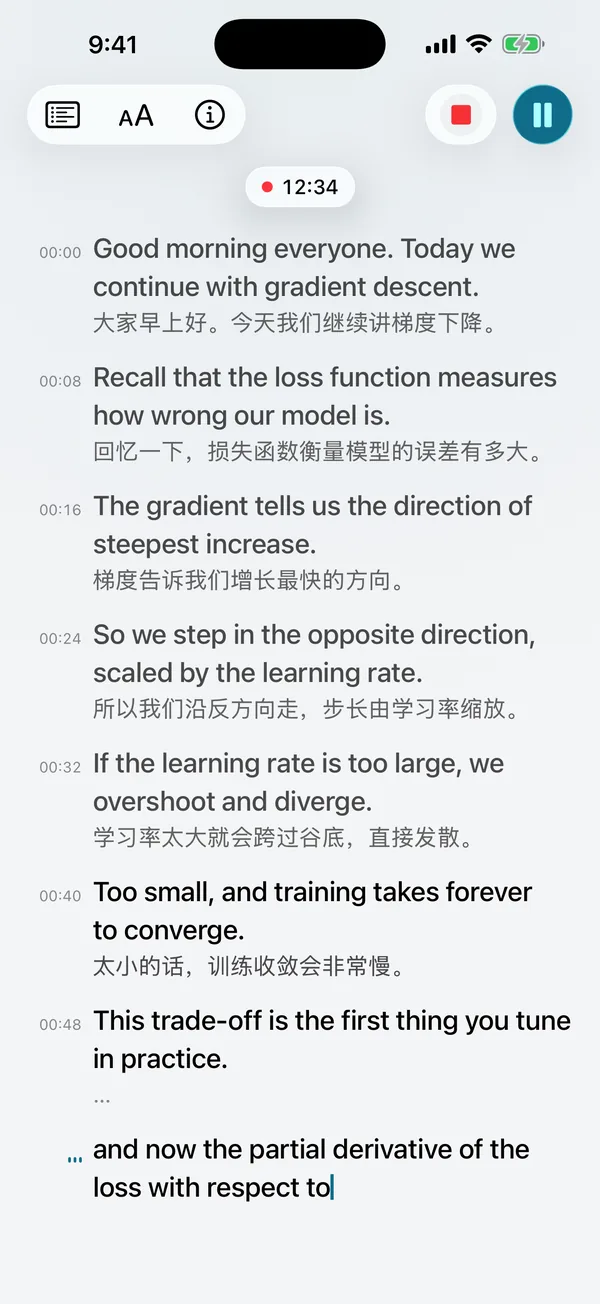
The instructor's voice becomes live captions in the original language, each line followed by a translation. The Display menu offers three text sizes and a choice of original with translation, original only, or translation only.
Class Recording
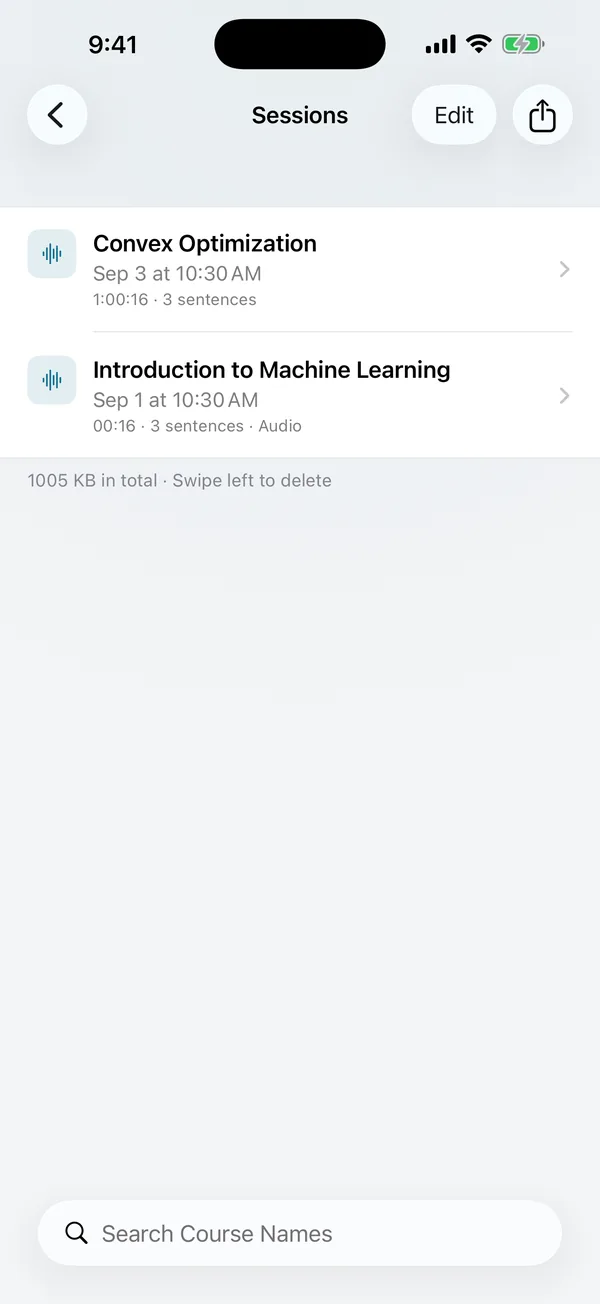
Every session records audio alongside the captions, and both are saved on your device.
Pause and Resume
Pause any time during a break, then tap Resume when you are back. The same session continues instead of splitting into two.
Saved by Class
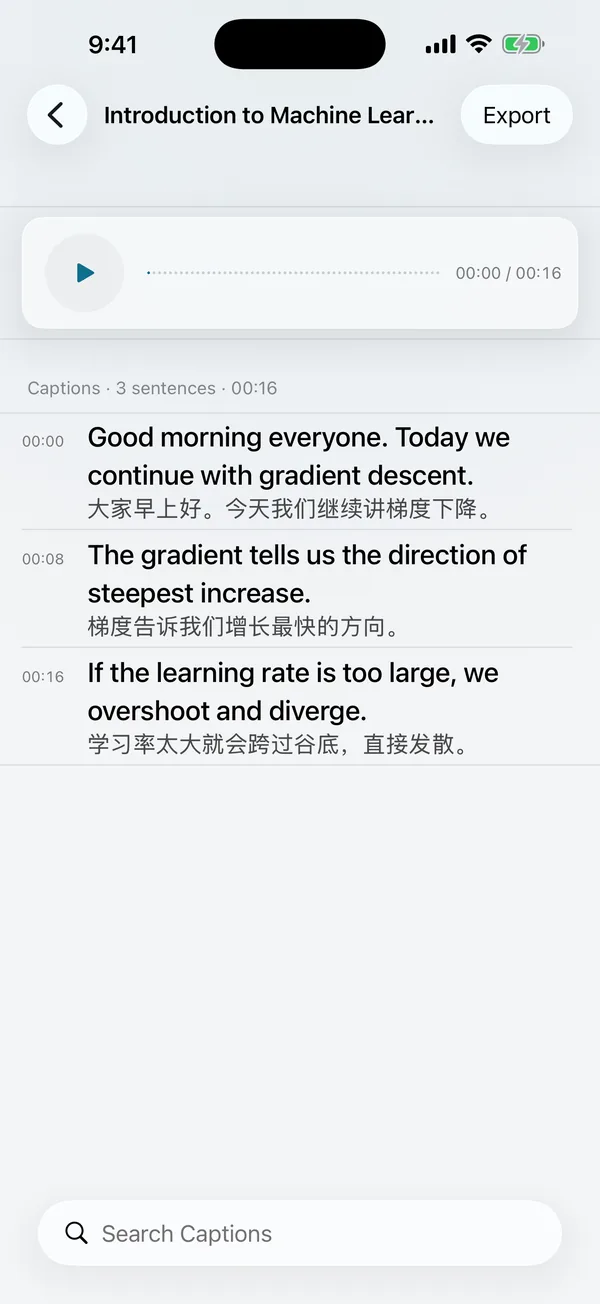
Each class is saved automatically as a session. Revisit it, search its captions, and give it a name. When revisiting, touch and hold a line to copy or share it.
Export and Share
Captions export as txt, srt with timestamps, Markdown, and PDF; recordings export as m4a. Everything goes through the iOS share sheet to other apps.
Lock Screen and Dynamic Island
The latest line appears on the Lock Screen, and on iPhone in the Dynamic Island as well.
Notifications
Turn on notifications in the app: if a call or another interruption leaves a session paused for over two minutes, a reminder asks you to come back.
Multiple Languages
The Languages group on the About page lets you change Language Being Spoken and Language I Read, and the default translation follows the device language. The interface is available in 14 languages.
Get Started in Three Steps
The first setup takes a few minutes. After that, every class starts with one tap.
- 1
Download
Search for Keyu on the App Store and download it free.
- 2
First-Time Setup
On first launch, the app needs an internet connection. Wi-Fi is recommended.
- 3
Tap the Microphone Button at the Top Right
Start a session and captions with translations appear right away.
Lecture Audio Processed on Your Device
Speech recognition and translation run on your device. Captions and recordings are stored on your device, and the developer cannot access them.
- On-Device Recognition and TranslationRecognition and translation run on the device; downloaded languages work offline.
- No Accounts or AdsNo accounts, ads, or tracking.
- Storage and iCloud BackupCaptions and recordings are stored on the device. With iCloud Backup on, caption text is included in the system backup at Apple; recordings are not.
- Diagnostics You ControlThe app sends nothing to the developer over the network. A diagnostic log is exported as a file from the About page and sent by you, by email or through other apps from the share sheet. It contains no captions, translations, or recordings.
Frequently Asked Questions
Common questions before you download.
What system and device do I need?
Keyu installs on iPhone and iPad with iOS 26 or iPadOS 26 or later. Whether it works depends on the device: it must support Apple's on-device speech recognition, and unsupported models show a notice after installation.
Why does the first launch need internet, and how long does it take?
On first launch, the app downloads the recognition components and translation language packs from Apple, which takes a few minutes. Wi-Fi is recommended. Downloaded languages work offline.
Does it work without a network?
Yes, as long as the languages in use have been downloaded. Switching to a language that has not been downloaded requires a connection. With the languages downloaded, recognition and translation run on the device, so captions and translations appear even in a classroom without Wi-Fi or signal.
Can I record my instructor's lecture?
Every caption session records audio at the same time, and the recording stays on your device. Rules on recording lectures vary by region and school, so get the instructor's permission before recording.
How can I improve recognition accuracy?
Set Language Being Spoken to the language the instructor speaks; recognition depends on this match. Then place the device closer to the instructor in a quieter spot with the microphone facing them for steadier results.
Where are captions and recordings stored, and how much space do they take?
Captions and recordings are stored on your device, and recordings take about 115 MB per hour. Deleting a session deletes its captions and recording together, freeing space whenever you need it.
Which languages are supported?
By default Keyu recognizes English, and the default translation follows the device language. The Languages group on the About page lists the available languages and their download status. The interface is available in 14 languages.
Download Keyu on the App Store
Free · Works on iPhone and iPad, requires iOS 26 or iPadOS 26 or later · On first launch, the app downloads the recognition components and translation language packs over the internet
Download on theApp Store